
Camera Portal

Add your cameras, on your terms.

A small web page that runs on the device at your site. Add camera streams, preview each one live, and send them to CompScience - nothing leaves your network until you approve.
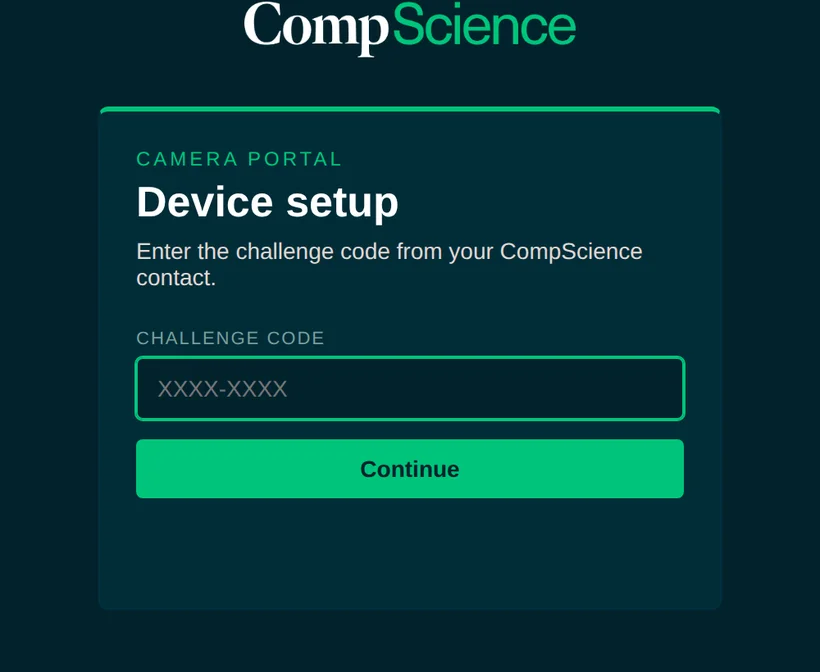
Camera Portal device setup screen with challenge code entry

Before you begin

Three things, all from your side.

Step by step

About five minutes for the first camera.
1
Open the portal
Browse to the address exactly as given, including https:// and :8443. The "not secure" certificate warning is expected on a local device - choose Advanced > Continue.
2
Confirm the device
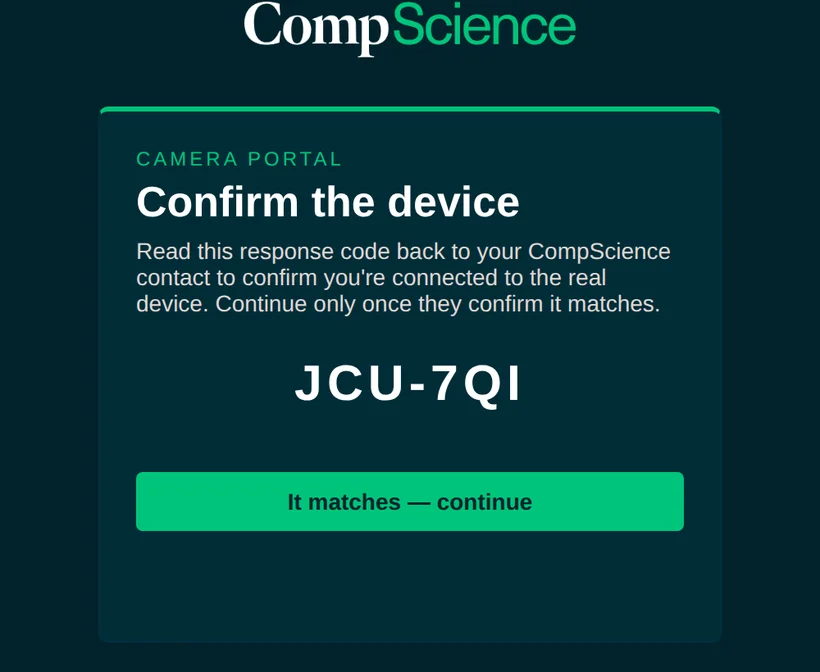
Enter your challenge code and read the response code back to your CompScience contact. If it matches on our end, continue; if not, stop and call us.
Confirm the device screen showing the response code to read back
3
Add a camera
Name it, pick the source type (RTSP, RTSPS, or HTTP snapshot), and paste the stream URL - e.g. rtsp://192.168.1.50:554/stream1. Adding many? Bulk add takes one per line.
4
Preview before it counts
Hit Preview - a live frame catches wrong addresses, bad passwords, and offline cameras. Preview must succeed before the camera can be added.
5
Pick your active set
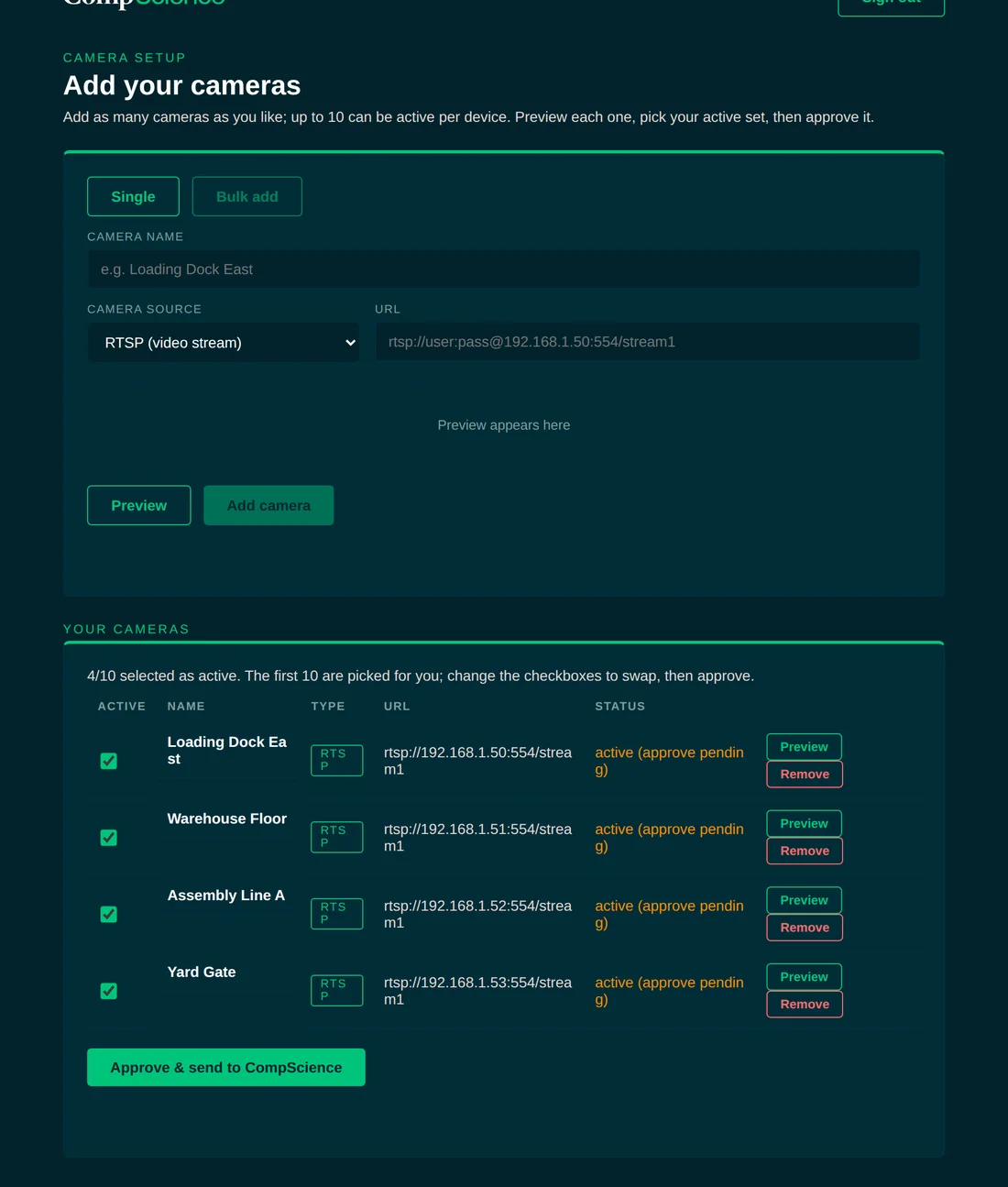
Every camera you add is saved; up to 10 are active per device. The first ten are picked automatically - swap with the Active checkboxes anytime.
Add your cameras screen with the camera list, active checkboxes, statuses, and the approve button
6
Approve & send
One click sends your active set securely to CompScience. We finish the connection and monitoring begins. Come back anytime to add or change cameras and approve again.

Built-in security

Local-only access, gated three ways.
Time-gated codes
Access codes are single-use and expire. Your CompScience contact issues one when you're ready.
Challenge-response verified
The portal answers your code with a response code you confirm with us - proof you're on the genuine device. Three wrong tries locks it down.
Local until you approve
Everything runs on your LAN. Camera details are only sent to CompScience when you hit approve.

If something isn't working

The quick checks.
Check the address starts with https:// and ends with :8443, and that you're on the same network as the device.
Don't continue. Select "It doesn't match" and contact us - it can mean you're not connected to the real device.
Three wrong codes lock the portal for safety. Contact us and we'll issue a new code.
Verify the stream URL and login, confirm the camera is powered and reachable from this network, and preview again.

Ready to add your cameras?

Ask your CompScience contact for an access code - it's single-use and expires, so request it when you're ready to go.

[email protected]